Click to Pay
Click to Pay allows customers to pay instantly using securely stored cards in the Visa and Mastercard networks. No more entering card details – just click and pay.
Click to Pay works like other wallet payments (MobilePay, Google and Apple Pay, etc.), which facilitate transactions via tokenized cards. In other words, wallets are card-based payments.
Enabling Click to Pay
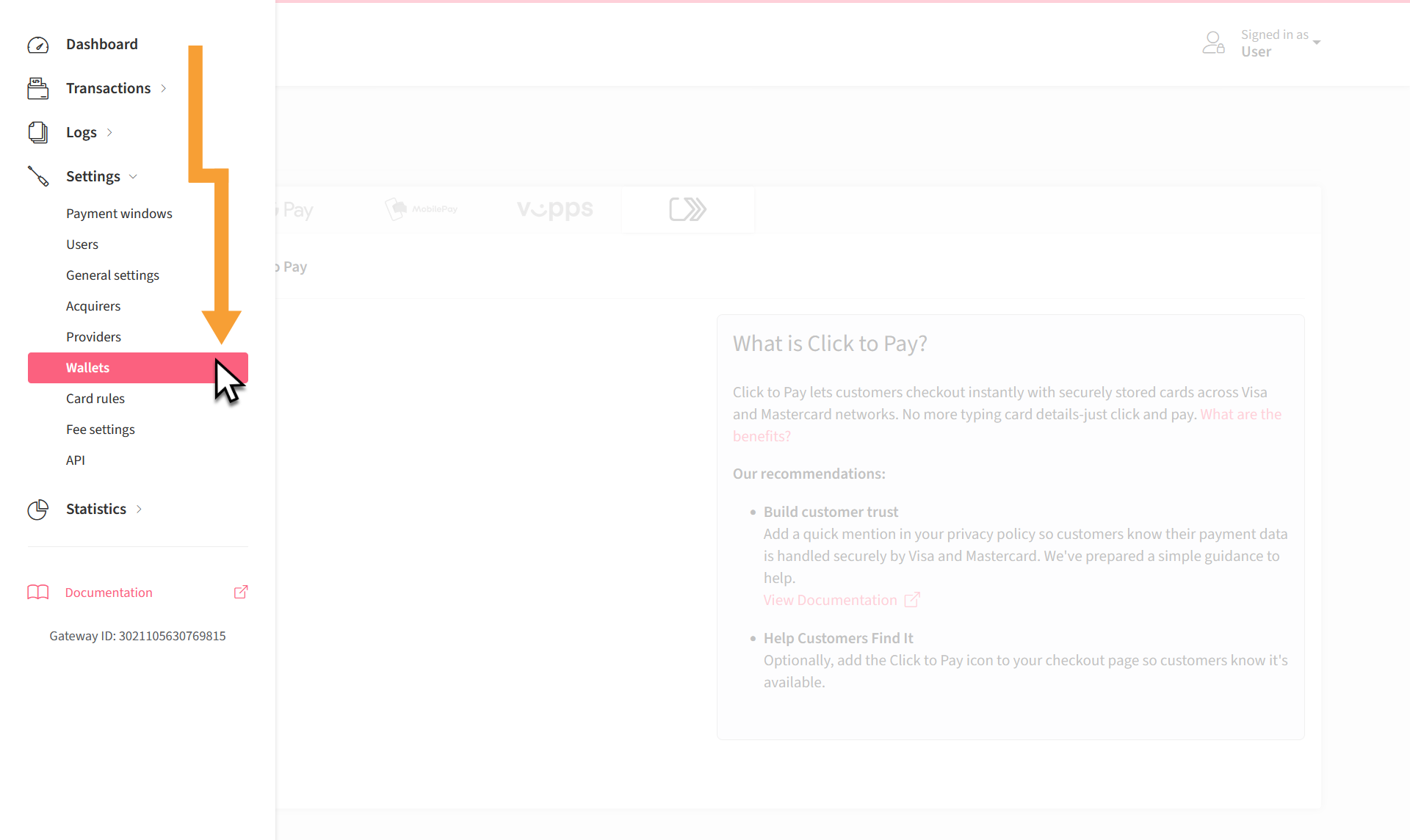
To enable Click to Pay, go to Settings > Wallets:
Click on the Click to Pay tab and activate the functionality:
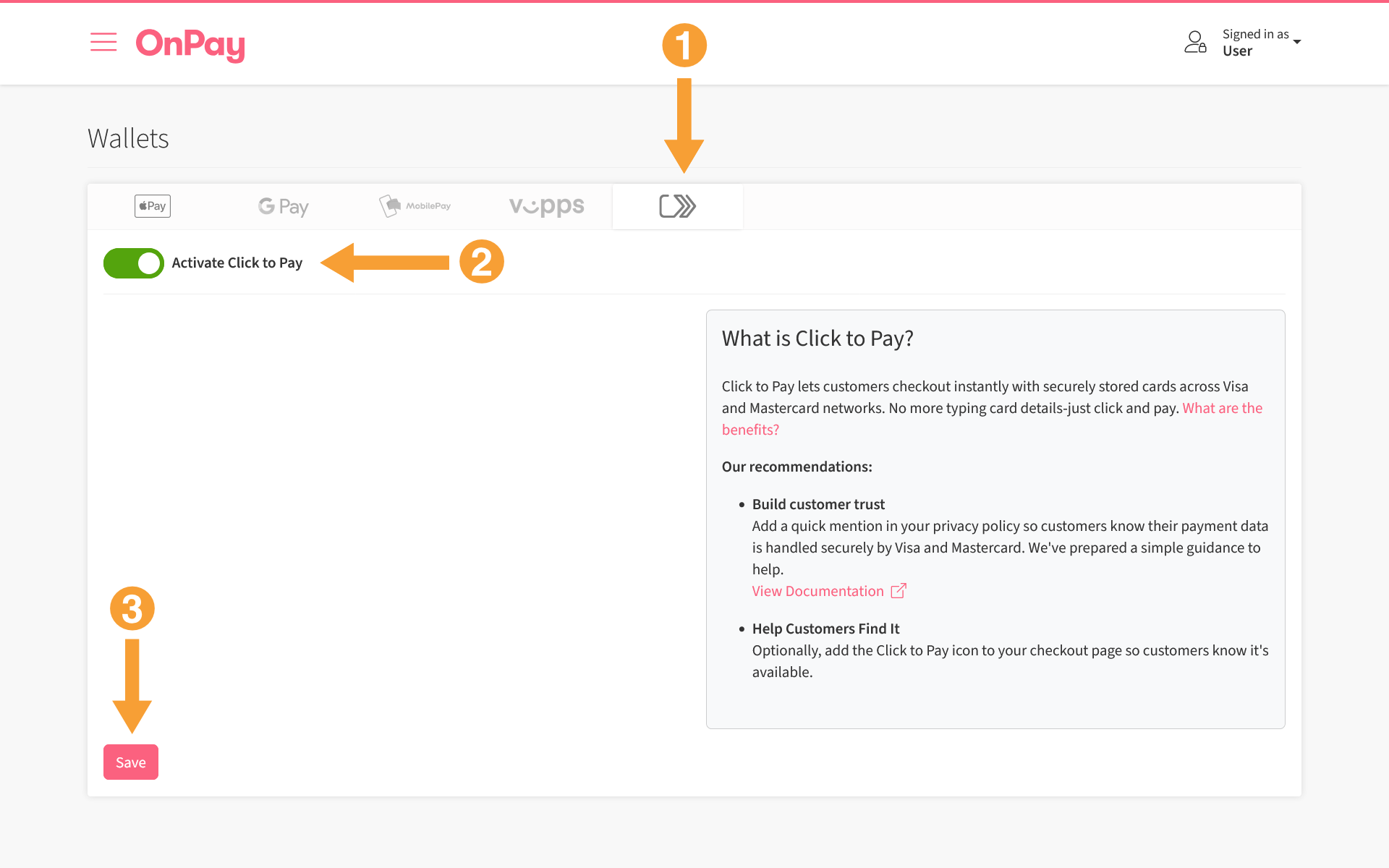
- Click on the tab.
- Activate Click to Pay.
- Save your changes.
See the section Worth knowing below for further information about the functionality.
Payment flow
- The payment flow is automatically processed through Click to Pay if the cardholder (customer) has activated Click to Pay through their bank. This check is performed using the customer's email address, which is entered during the payment flow.
- In practice, this means that the customer receives a text message with a one-time code the first time a payment is made on a device that has not previously been used for purchases with Click to Pay. In the flow, the customer can choose not to require a one-time code for future payments.
- All payment cards that the customer may have linked to Click to Pay are automatically displayed in the flow and can be selected before completing the purchase.
- Alternatively, the customer can choose (at the bottom of the Click to Pay dialogue) to enter their card details manually and thus bypass Click to Pay.
- If the customer has entered an email address during the payment flow that is not linked to Click to Pay, the flow will use card entry instead.
Advantages
Click to Pay allows customers to pay instantly using cards they have previously saved with Visa or Mastercard, without having to enter card details:
- Faster transactions with saved payment cards.
- Improved security through tokenized payments.
- Global acceptance for all Visa and Mastercard holders.
- *Instant activation without technical integration.
* It may take up to 48 hours from activation in OnPay for Click to Pay to be active in the payment flow.
Recommendations
Add a brief note to your terms and conditions so customers know their payment details are handled securely by Visa and Mastercard.
Worth knowing
Click to Pay requires that you have an acquiring agreement that includes Visa and Mastercard. The acquiring agreement must be activated in OnPay and ready to receive payments. This could be Clearhaus, for example.
- The customer's payment card is registered with Click to Pay via their bank, and the customer's email address is used to link the purchase to Click to Pay. The bank often contacts the customer via newsletter or app notification regarding this, and the cardholder can also contact their bank themselves to have their cards registered.
- All card data is stored as tokenized (secure) cards in the Visa and Mastercard networks. OnPay also uses Saved Cards, which are tokenized, but these are used for subscription payments and are not related to Click to Pay's tokenized cards.
- Verification (security check) of Click to Pay payments is done directly through Click to Pay.
- Surcharge is not available with payments made through Click to Pay.
- It may take up to 48 hours from activation in OnPay for Click to Pay to be active in the payment flow.
- If you want to turn off Click to Pay, you can do so simply by disabling Click to Pay in OnPay.